How to install the Cibus app on the patient’s phone
The patient area works like an app but cannot be downloaded from app stores: it can be added to the Home screen directly via the link in just a few seconds. Here you’ll find instructions ready to send to the patient, on an iPhone using either Chrome or Safari.
The Cibus patient portal works like an app, but does not need to be downloaded from any app store: it can be added to your phone’s home screen directly via the link in just a few seconds.
As a nutritionist, simply send the patient the access link — https://www.cibushealth.com/patient-access — via WhatsApp or email, along with the instructions below. You can copy and paste them as they are.
Text ready to send to the patient — using Chrome on an iPhone: 1) Open this link in Chrome: https://www.cibushealth.com/patient-access. 2) In the top right-hand corner, tap the three dots. 3) Tap ‘Add to Home Screen’. 4) Confirm by tapping “Add” in the top right-hand corner. Done! You’ll find the Cibus icon amongst your apps.
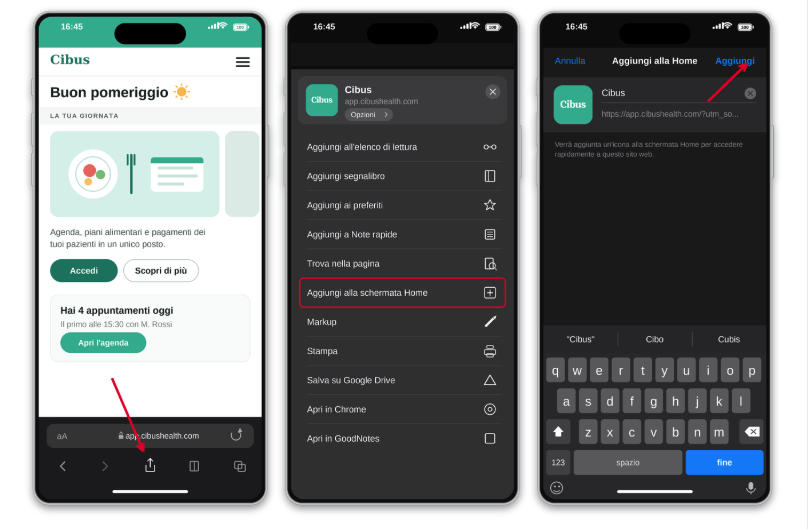
Text ready to send to the patient — using Safari on an iPhone: 1) Open this link in Safari: https://www.cibushealth.com/patient-access. 2) At the bottom, tap the Share icon (the square with the arrow). 3) Scroll down and tap ‘Add to Home Screen’. 4) Tap ‘Add’ in the top right-hand corner. Done! You’ll find the Cibus icon amongst your apps.
Because it’s convenient for the patient. Once added to their phone, they can access it with a single tap — without having to search for the link every time. They always have their meal plan, recipes, progress and appointments to hand.
If you cannot find the button. These instructions apply to both Chrome and Safari on the iPhone: if the button to add the app does not appear, simply reopen the link using one of these two browsers.
What the patient sees: the patient area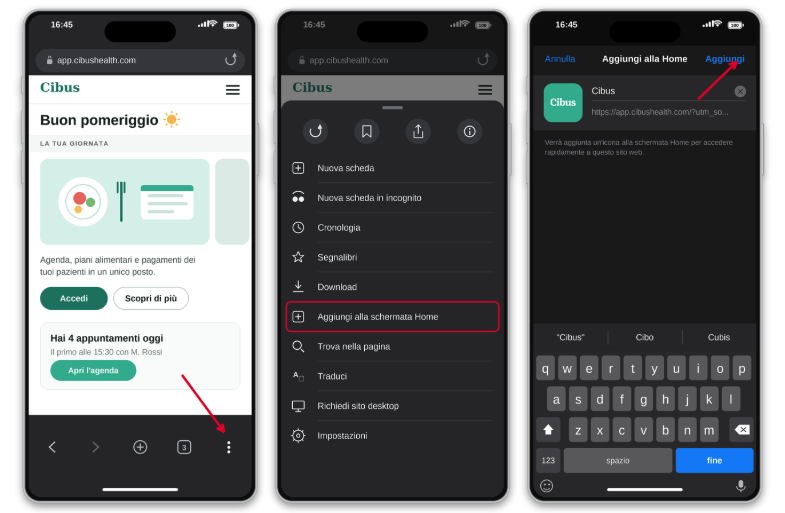
Would you like to learn more?
Not using Cibus yet? Leave your contact details and we’ll get back to you.
Already using Cibus?
Need help? Message your Cibus contact.