The save buttons in the print preview: template, patient template and exact copy
What do the three save buttons in the print preview (Save template, Save patient template, Save exact copy) and the Archive do: static outline vs dynamic foods, and which one to choose.
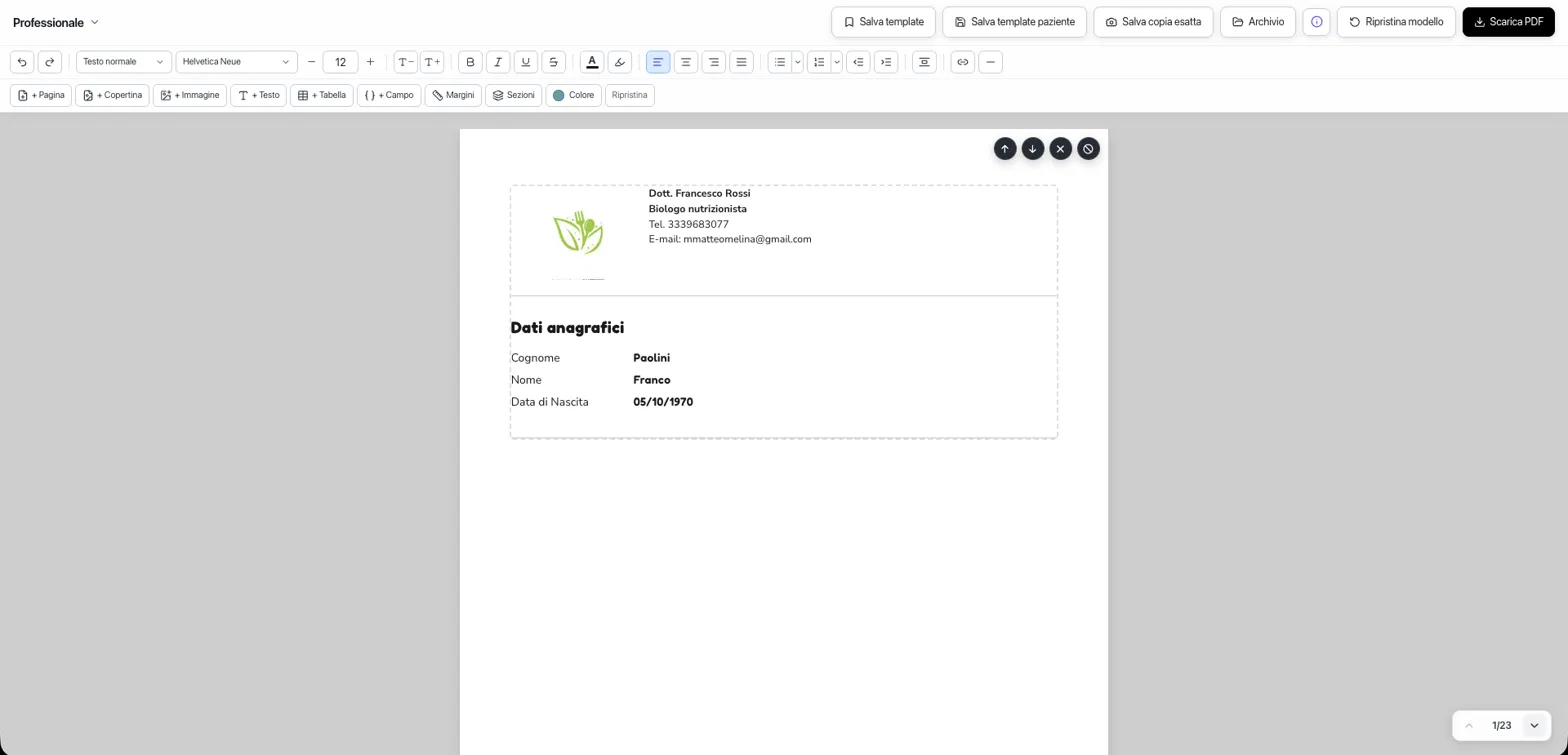
In the Cibus print preview — the section where you customise the PDF as you would in a text editor, before sending it to the patient — you’ll find three save buttons at the top, plus the Archive. They perform different functions, and it is important to understand which one to use: they all save ‘your work’, but they do not save the same things.
The key distinction: static layout vs dynamic food items. Before we get to the buttons, here’s the key concept. The document’s ‘layout’ — fixed notes, images, logos, extra pages, panel arrangement — is static: you save it and it stays as it is. Food items and weights, on the other hand, remain dynamic: they update automatically from the patient’s plan. This means that saving a template does not ‘freeze’ the diet: if you change the plan, the PDF updates. To truly ‘freeze’ everything, you need to save it differently (the exact copy, explained below).
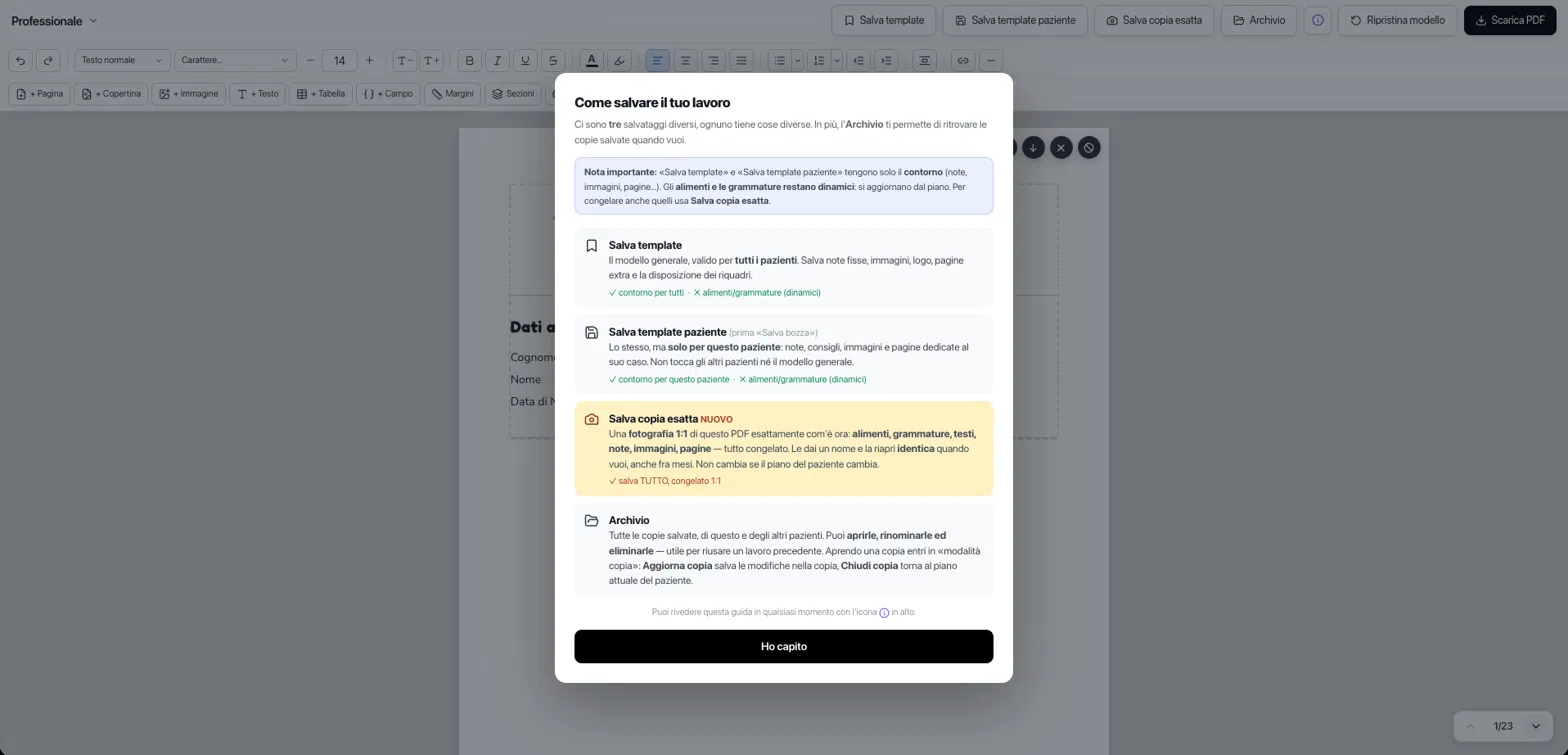
Save template. This is the general template, applicable to all patients. Save the layout — fixed notes, images, logo, extra pages and the arrangement of the panels — and apply it to every printout you produce in future. This is what you use once to set up your brand identity: the logo at the correct size, recurring notes, and the document structure. Save the layout for everyone, but not the food items (which remain dynamic).
Save patient template. This works in the same way as the previous option, but only for this specific patient (in earlier versions, it was called ‘Save draft’). Save notes, advice, images and pages relating to this specific case, without affecting other patients or the general template. Useful when a single patient has specific requirements within the document. Here too: side dishes yes, dynamic foods.
Save as an exact copy. This is the save option that freezes everything in place. It takes a 1:1 snapshot of the PDF exactly as it is at that moment — foods, weights, text, notes, images, pages — everything locked in place. You give it a name and can reopen it exactly as it was whenever you like, even months later: it won’t change even if you modify the patient’s plan in the meantime. This is the option to use when you want to preserve the delivered version of a diet plan, exactly as it was.
Archive. This is where you’ll find all the saved copies, for this patient and others. You can open, rename and delete them — handy for reusing previous work. When you open a copy, you enter ‘copy mode’: ‘Update copy’ saves the changes to the copy itself, whilst ‘Close copy’ takes you back to the patient’s current record.
In summary, here’s which option to choose: to set up your layout for all patients, use ‘Save template’; to customise a document for a single patient, use ‘Save patient template’; to keep a diet exactly as it is now, ‘frozen’, use ‘Save exact copy’; to find or reuse a saved copy, go to ‘Archive’. You can review this guide at any time via the (i) icon at the top of the print preview.
Would you like to learn more?
Not using Cibus yet? Leave your contact details and we’ll get back to you.
Already using Cibus?
Need help? Message your Cibus contact.