Set your working hours for bookings
Set the time slots in which you accept appointments: these are what the patient sees via your booking link. Cibus cross-checks your availability against existing commitments in your diary and with Google Calendar, showing only your actual availability.
If you allow patients to book appointments themselves via your link, Cibus needs to know when you are available. Your working hours are the time slots during which you accept appointments: this is what the patient sees when they select a day and time via your booking link.
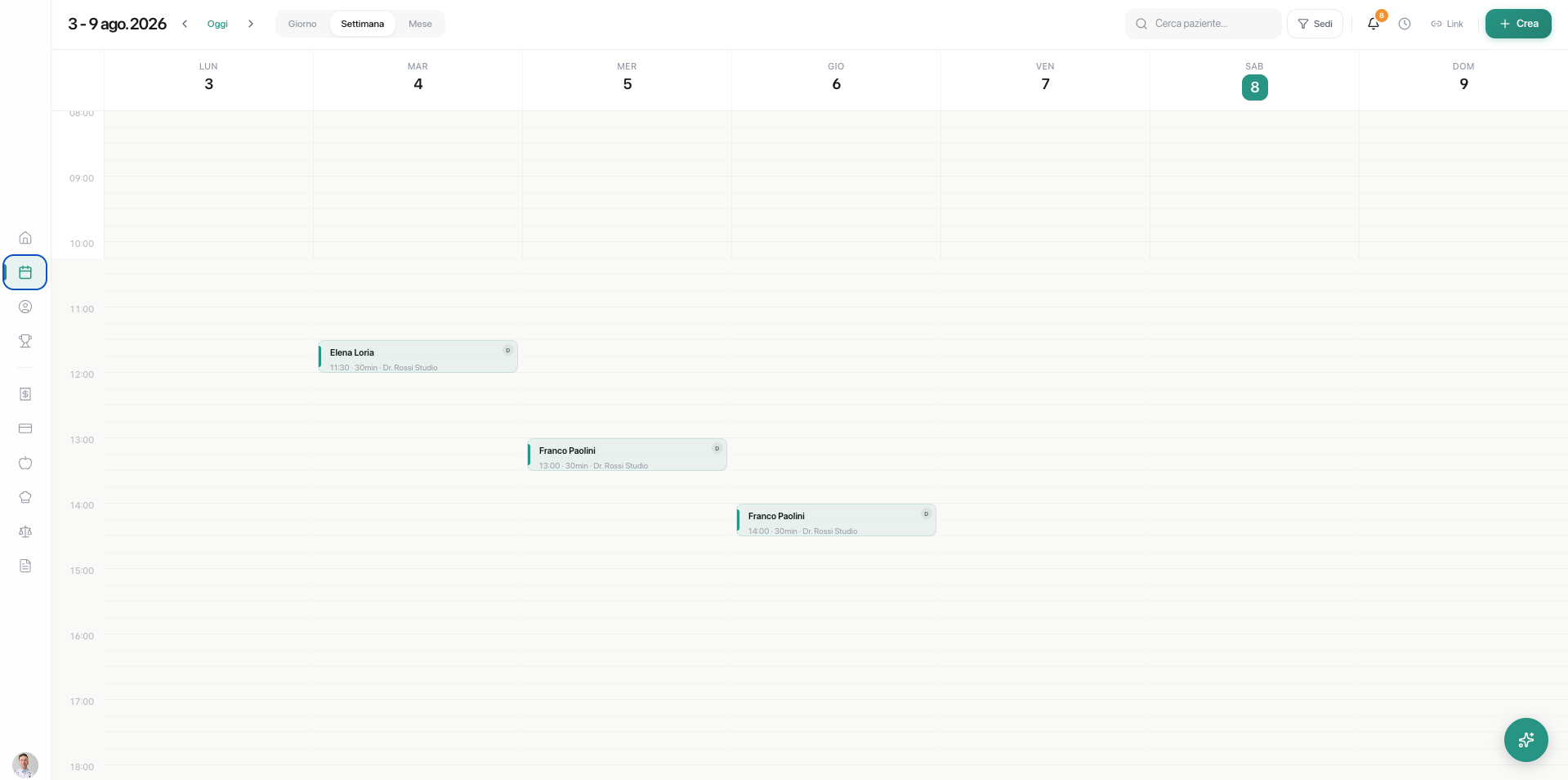
Where to set them. On the Calendar screen, in the top right-hand corner, you’ll find the clock icon: click on it to access your working hours settings.
How it works. You set the time slots in which you work — day by day, with start and end times — and from then on, anyone who clicks on your booking link will only see those available slots. You can define a standard week, which applies on a recurring basis, or customise it week by week or month by month when your schedule changes (holidays, conferences, periods with different working hours).
Cross-referencing with your actual commitments. This is the most useful feature: the availability shown to the patient isn’t just your theoretical time slots, but the combination of those and your existing commitments. If you already have an appointment in your diary, that slot automatically disappears from the bookable availability. And if you’ve synchronised Google Calendar, Cibus also takes into account the personal events you have there: a private appointment entered in Google will block that slot on the booking side too, so nobody can book you at a time when you’re already occupied.
The result: patients always see your actual availability, not just your theoretical availability — and you avoid clashes without having to think about it. To link Google Calendar, see the dedicated article; to activate the booking link, start with the article on automatic diaries and reminders.
Link Google CalendarWould you like to learn more?
Not using Cibus yet? Leave your contact details and we’ll get back to you.
Already using Cibus?
Need help? Message your Cibus contact.