Alternatives, staple foods and food groups
The ‘alternative’ options that the patient can choose instead of the main food item, how to make an alternative the main choice, and how to save entire food groups for reuse to save time.
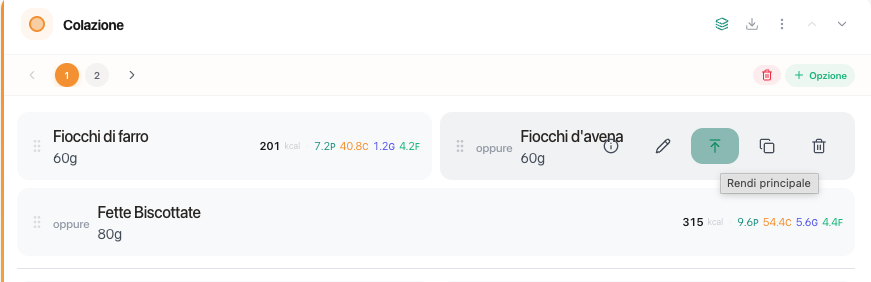
In Cibus, every food item in a meal can have alternatives — the ‘or’ options that the patient can choose instead of the main food item, whilst maintaining an equivalent nutritional intake. And you can save entire food groups to reuse them. That’s all.
Add an alternative. Within a meal, next to the food item, use “+ Option” to add an alternative. It will appear below the food item labelled “or”: the patient will see that they can choose one or the other. You can add as many as you like (in the example: spelt flakes or oat flakes or rusks).
Make an alternative the main choice. If you want an alternative to become the main choice for a meal, hover over the food item and click the green ‘Make main’ arrow: the alternative will replace the main food item, and what was previously the main choice will become an alternative. This is useful when you’re adapting a plan without having to rewrite it.
The other buttons on the food item. Next to it, you’ll also find the ‘Info’ button (nutritional values), the ‘Duplicate’ button and the ‘Bin’ button to delete.
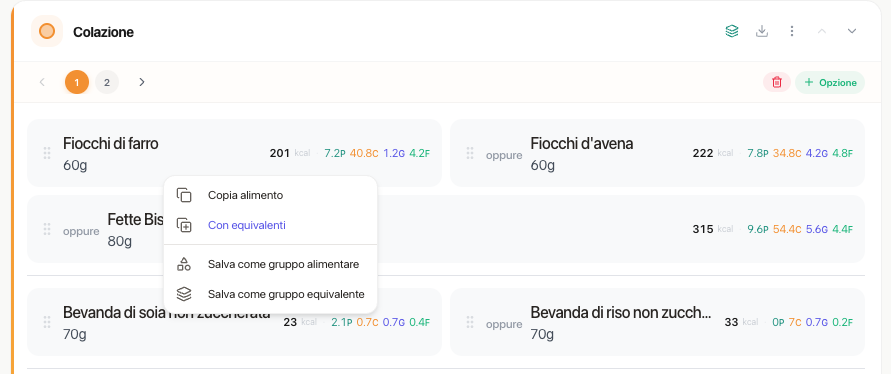
Copy a food item, either on its own or with its alternatives. From the food menu (the icon at the top), there are two ways to copy: ‘Copy food’ copies only that food item; ‘With equivalents’ copies the food item along with all its alternatives, so you can paste it elsewhere whilst retaining the entire set of options.
Save a group to reuse it. This is the feature that saves you the most time. If you frequently use a particular combination of foods, instead of recreating it ingredient by ingredient each time, you can save it as a group in your database: you can call it up whenever you like and re-enter the whole block in one go. From the food menu, you have two saving options: ‘Save as food group’ saves the combination of foods as a single group (for example, a complete breakfast that you frequently serve); ‘Save as equivalent group’ saves a set of foods that are interchangeable with one another, i.e. the ‘or’ options from which the patient chooses (for example, your sources of carbohydrates for breakfast).
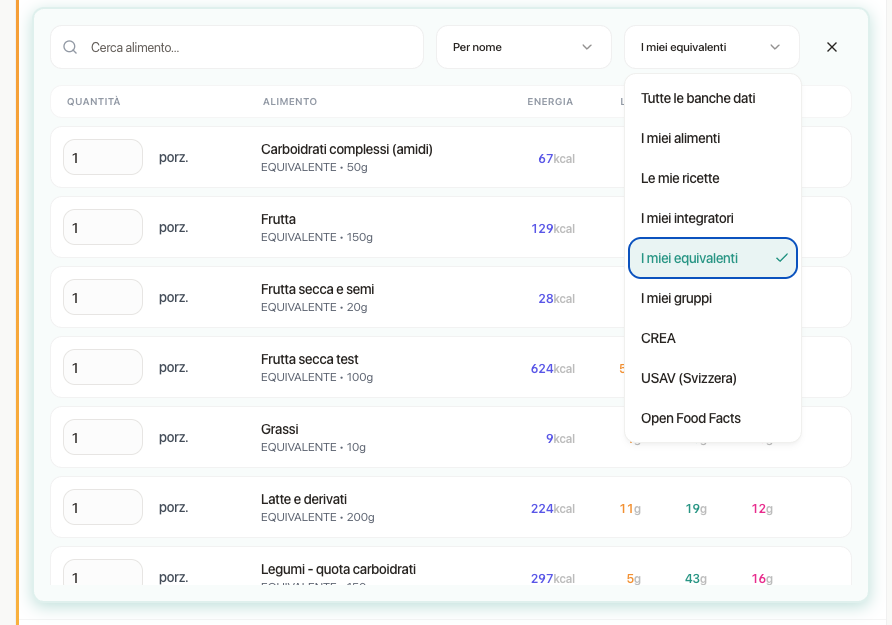
In both cases, the group is added to your group database, ready to be reinserted into any plan: you can find it amongst the data sources (for example, in ‘My groups’ or ‘My equivalents’) and quickly recreate a combination you use frequently, without having to re-enter the foods one by one.
Would you like to learn more?
Not using Cibus yet? Leave your contact details and we’ll get back to you.
Already using Cibus?
Need help? Message your Cibus contact.