How to customise the medical history form
Build your own medical history form: add or hide fields, choose the type of each entry (short text, long text, drop-down menu), create colour-coded sections and distinguish between initial visits and follow-ups. This is the most important step before AI transcription: the more personalised the form is, the more the summary that the AI compiles in your fields will reflect your own.
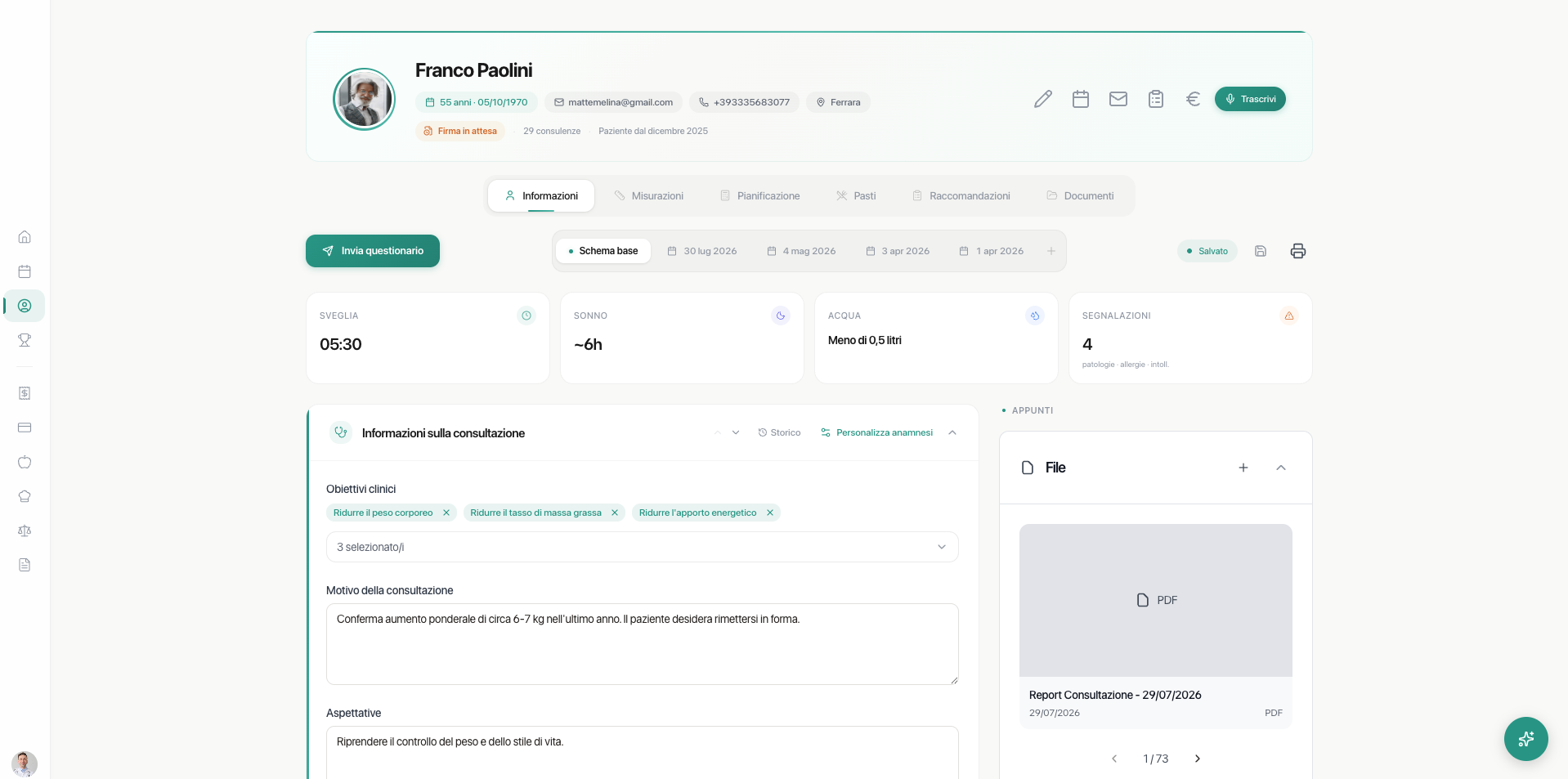
The medical history form in Cibus is not a rigid template: each professional builds their own template, with the questions and sections they actually use. It’s worth taking the time to do this at the start, because it’s based on this template that the AI transcription will compile the consultation report — the more personalised the template is, the more the summary the AI compiles in your fields will reflect your own work.
Where to find it. Go to a patient’s folder and open the Information tab: this is where you’ll find their medical history. The ‘Customise medical history’ button opens the form editing mode.
Add and hide fields. For each section, you can add new fields or hide those you don’t use — the visibility of each field is managed using the eye icon. Fields can be of different types — for example, short text for a brief answer, long text for a detailed note, or drop-down menus to choose from several options — so you can tailor each field to the type of information you’re collecting. By scrolling down, you can also add entire sections, not just individual fields.
Sections and colours. Each section is identified by a colour, so you can spot it at a glance. Once you’ve set up the layout, return to the medical history form and you’ll find it personalised: you can reorder fields and sections using the arrows (up and down), so the order reflects the way you conduct the consultation.
Basic form and follow-up. You can differentiate the template for the first visit from that for follow-up appointments: the questions you ask at the first appointment are often different from those at a follow-up, and Cibus allows you to manage the two templates separately. Questions added to the Basic Template appear hidden in the Follow-up, ready to be made visible when needed.
This is the most important step before transcription. When you start the AI transcription, Cibus compiles the medical history according to the template you have defined. Setting up the fields and sections correctly before you begin means you’ll have the medical history summary ready in your system straight away, without having to reorganise it every time. For the transcription itself, see the article dedicated to AI transcription of consultations.
Go to the article on AI transcription of the consultation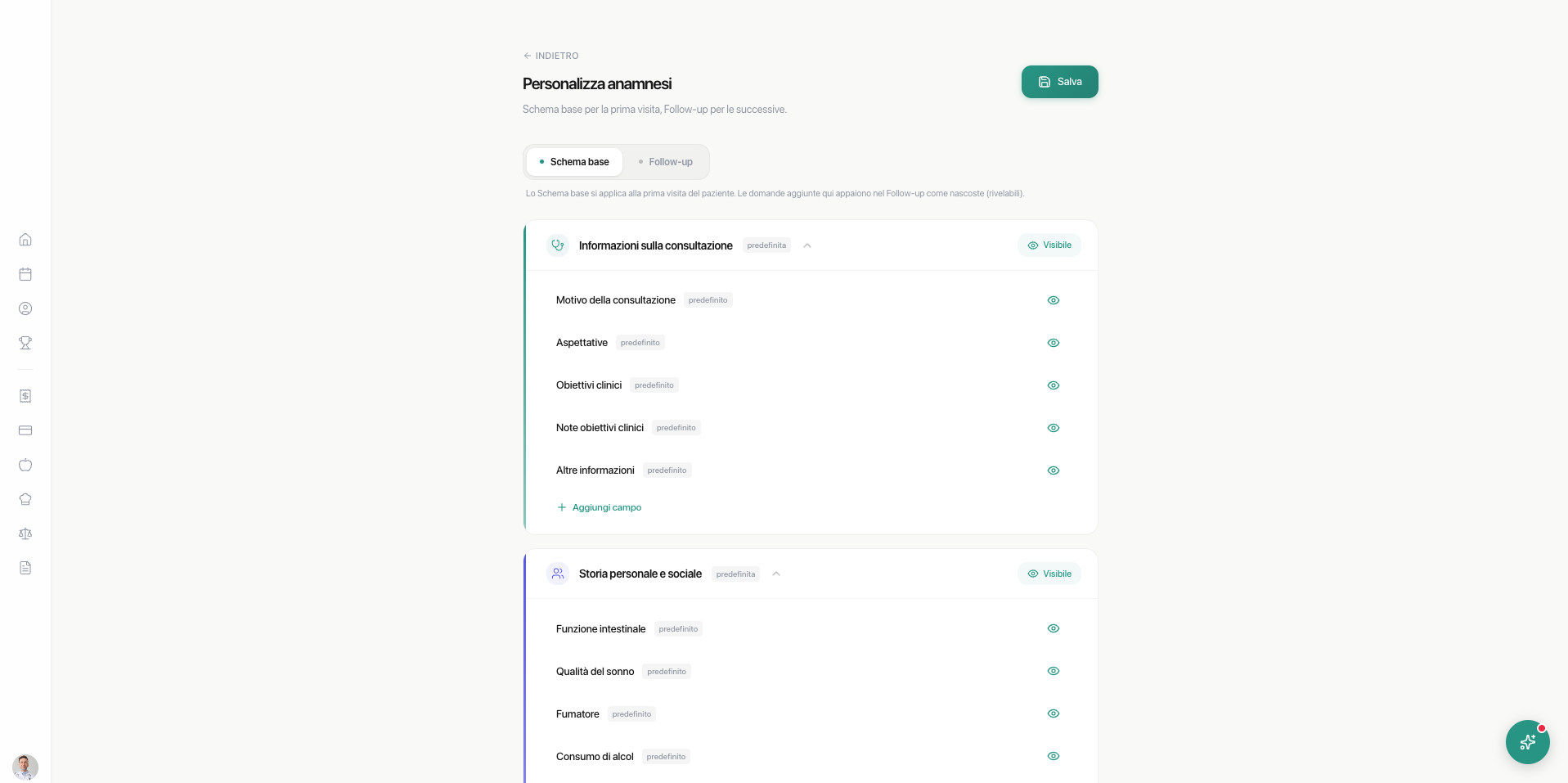
Would you like to learn more?
Not using Cibus yet? Leave your contact details and we’ll get back to you.
Already using Cibus?
Need help? Message your Cibus contact.